Data cleansing in Excel: what goes wrong and how to fix it
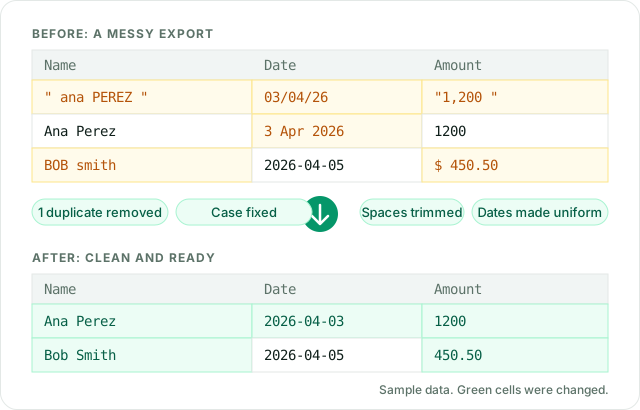
Most messy spreadsheets have the same handful of problems: spaces you cannot see, text that looks like a number or a date but is not, the same customer typed three ways, and columns that hold two things at once. This guide shows the Excel formula or menu command for each problem, and how the Data Cleaner above does the same job on a whole file in one pass. Data cleaning is the first step before sorting, lookups, pivot tables and charts, because those all depend on values matching exactly.
How to remove extra spaces in Excel
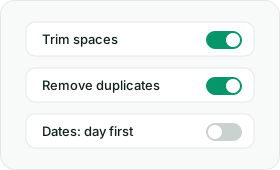
Spaces at the start or end of a cell, or two spaces between words, make identical-looking values different. A lookup for "Smith" will not find "Smith ". The fix is the TRIM function: =TRIM(A2) removes leading and trailing spaces and reduces any run of spaces between words to one. Put it in a helper column, fill it down, then copy the results and paste them back as values. In the Data Cleaner, the option Trim spaces does this for every column at once.
How to remove non-breaking spaces (CHAR 160)
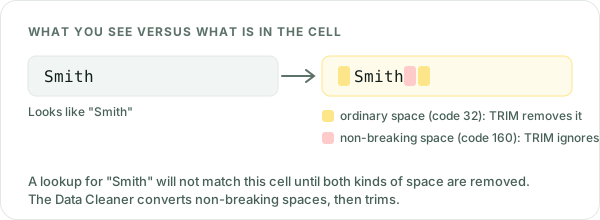
If TRIM seems to do nothing, the spaces are probably non-breaking spaces, character code 160. They appear when text is copied from web pages and some systems, and TRIM only handles the ordinary space, code 32. Replace them first: =TRIM(SUBSTITUTE(A2,CHAR(160)," ")). The Data Cleaner turns non-breaking spaces into ordinary spaces under Remove odd characters, then trims.
How to remove line breaks from cells
A line break inside a cell comes from Alt+Enter or from an imported file, and is character 10 (sometimes 13 as well). To replace it with a space, use =TRIM(SUBSTITUTE(SUBSTITUTE(A2,CHAR(13)," "),CHAR(10)," ")). Do not rely on CLEAN alone for this: it deletes the line break without adding a space, so the last word of one line can run into the first word of the next. In the Data Cleaner, tick Replace line breaks.
How to remove non-printing characters
Imported data can carry control characters that you cannot see but that break matching and sorting. =CLEAN(A2) removes the first 32 characters of the ASCII set (codes 0 to 31). It does not remove every invisible Unicode character, such as the zero-width space. The Data Cleaner removes control characters and zero-width characters together under Remove odd characters.
How to remove duplicates in Excel
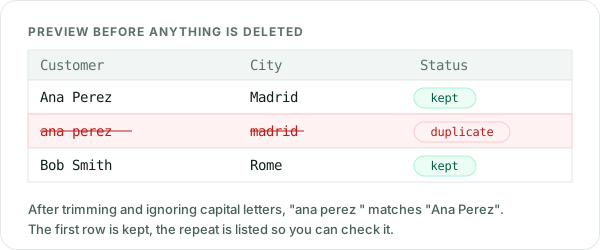
In Excel, select the data and choose Data, Remove Duplicates, then tick the columns that define a duplicate. Excel keeps the first match and deletes the others, and the comparison ignores capital letters. Two habits make this safer: work on a copy, and clean spaces first, because "Ana Perez" and "Ana Perez " are not duplicates until the extra space is gone. To see duplicates without deleting them, flag them with =COUNTIF($A$2:A2,A2)>1. The Data Cleaner shows the rows it would remove, with the reason, before you download.
How to change text case in Excel
=UPPER(A2), =LOWER(A2) and =PROPER(A2) change the case of text. PROPER capitalises the first letter after any character that is not a letter, so "o'brien" becomes "O'Brien" but "mcdonald" becomes "Mcdonald". The Data Cleaner offers lower, upper and title case for each column and shows the result before you commit.
How to convert text to numbers and dates in Excel
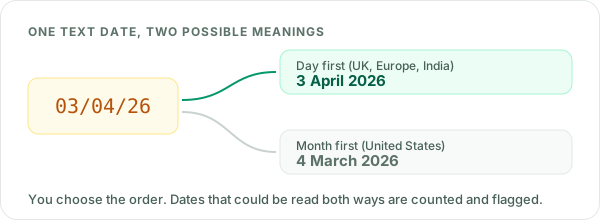
Numbers stored as text sit on the left of the cell, are ignored by SUM, and sort wrongly. =VALUE(A2) converts them, but it fails on currency symbols, trailing spaces or a decimal comma. Dates stored as text are harder: =DATEVALUE(A2) follows your computer's regional settings, so 03/04/2026 can mean 3 April or 4 March. The safe route is to decide the order yourself. The Data Cleaner converts a column to numbers (handling symbols, brackets for negatives and either decimal mark) or to dates (you choose day-first or month-first) and warns you about any date that could be read both ways. For a formula that builds real dates from text, see the Date Helper.
How to split and combine columns in Excel
To split a full name or an address into parts, use Data, Text to Columns, or =TEXTSPLIT(A2," ") in current Microsoft 365. To combine columns, use =TEXTJOIN(", ",TRUE,A2:B2) (Excel 2019 and later), which skips empty cells. The Data Cleaner has Split a column and Merge columns steps, plus Wide table to flat list, which turns a column per month into one row per month so it is ready for a pivot table.
The best order for cleaning data in Excel
- Remove non-breaking spaces and non-printing characters.
- Trim spaces, and replace line breaks if you do not want them.
- Fix text case.
- Convert text to numbers and dates.
- Remove empty rows and duplicates.
- Split or merge columns, and reshape the table.
This is the order the Data Cleaner follows. Duplicates come after the other steps so that values that only differed by spacing or case are already identical.
Excel formulas or the Data Cleaner?
| Job | In Excel | In the Data Cleaner |
|---|---|---|
| Extra spaces | TRIM in a helper column | One option, all columns |
| Non-breaking spaces | SUBSTITUTE with CHAR(160) | Remove odd characters |
| Line breaks | SUBSTITUTE with CHAR(10) | One option |
| Duplicates | Data, Remove Duplicates (permanent) | Preview of removed rows first |
| Text case | UPPER, LOWER, PROPER | Per column setting |
| Text to date | DATEVALUE (regional settings) | You choose day-first or month-first |
| Repeat next month | Redo the formulas | Save the settings and reload them |
Formulas are best when the data stays inside your workbook and updates live. A tool is quicker for a one-off export or a file you receive every month. Whichever you use, keep the original file and check a sample of rows afterwards. To practise these functions on exercises with feedback, try Excel Practice Sheets.
Questions about cleaning data in Excel
How do I clean data in Excel?
Work in a fixed order. First remove extra spaces and hidden characters, then fix text case, then convert text that should be numbers or dates, and only then remove duplicates and split or merge columns. Doing duplicates last means values that differed only by stray spaces are already identical.
How do I remove extra spaces in Excel?
Use =TRIM(A2) in a helper column. TRIM removes spaces at the start and end of the text and reduces runs of spaces between words to one. Copy the results and paste them as values over the original column.
Why does TRIM not remove all the spaces in my data?
Spaces copied from web pages and other systems are often non-breaking spaces, character code 160, which TRIM ignores. Replace them first with =SUBSTITUTE(A2,CHAR(160)," ") and then apply TRIM.
How do I remove duplicates in Excel without losing data?
Copy the data to a new sheet or save a copy first, clean spaces and case, then use Data, Remove Duplicates and choose the columns that define a duplicate. Excel keeps the first row it finds and deletes the rest. A cleaning tool that previews the rows to be removed lets you check before anything is deleted.
Is my data uploaded when I use this Data Cleaner?
No. The file is read and cleaned in your browser on your own device. It is not sent to a server or stored, and your original file is not changed. You download a new file.
Is the Data Cleaner free, and does it work on Mac?
The tool is free and runs in a web browser, so it works on Mac and Windows. There is nothing to install.
Can I clean a CSV file without opening Excel?
Yes. Load the CSV into the Data Cleaner, choose the rules, check the preview, and download the cleaned CSV. Excel can then open it.